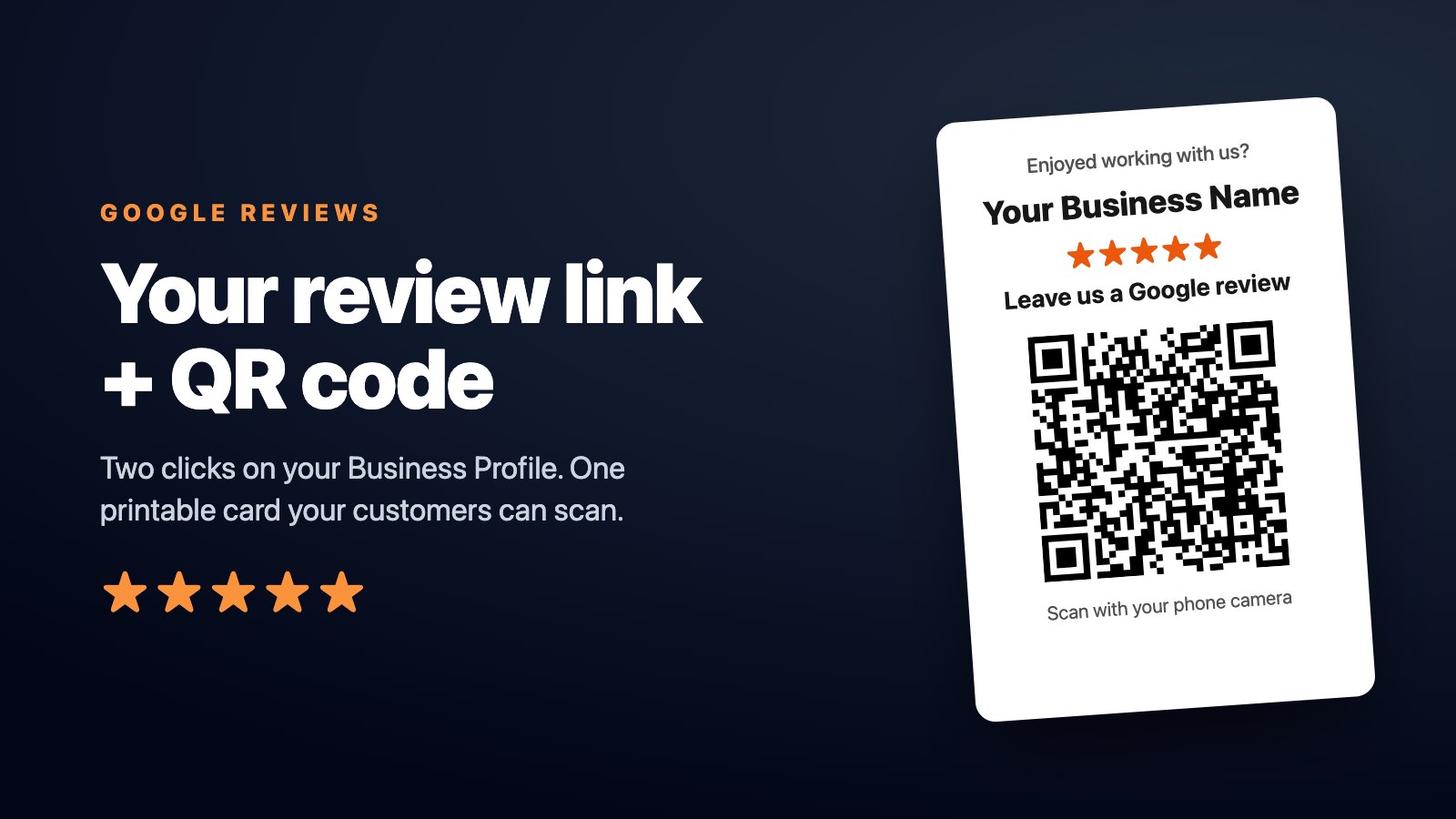
How to Get Your Google Review Link (and QR Code) in 2 Clicks
Quick answer: Search your business on Google while you're signed in to the account that manages your Business Profile, click Ask for reviews, and copy the link. That's your Google review link, and Google shows a QR code in the same place. Paste the link into the card maker below and you also get a printable review card, plus a text and an email you can send after every job.
Key takeaways
- Your review link lives on your Google Business Profile, behind the Ask for reviews button.
- Google gives you a QR code there too. The card maker in this article turns it into a printable card with your business name on it.
- Ask right after a job goes well, by text, with the link in the message.
- Google allows asking for reviews. It doesn't allow paying for them or trading discounts or freebies for them.
Make your review card
Type your business name, open it on Google, copy the link from Ask for reviews and paste it here. The card maker does the rest: a QR code, a printable 4 by 6 inch card and two messages ready to send. It's free, there's nothing to sign up for, and the link you paste never leaves your browser.
Where Google keeps your review link
The link isn't in a settings menu. It's behind one button on your Business Profile, and you only see that button when you're signed in to the Google account that manages the business. Google's own tips to get more reviews say it plainly: to leave reviews, you can ask customers to visit a Google link or scan a QR code.
On a computer
1. Go to google.com and sign in with the Google account that manages your business.
2. Search your business name. Your Business Profile shows up with your owner tools.
3. Click Ask for reviews.
4. Copy the link. It looks like https://g.page/r/.../review. The QR code is in the same window.
On your phone
1. Open the Google app or Google Maps, signed in as the owner.
2. Search your business name and open your Business Profile.
3. Tap Ask for reviews, then copy the link or share it straight to a customer.
If you're not the owner
Staff, a family member or the person who runs your marketing may not have owner access. They can still get a working link: open the business on Google Search, click Write a review, and copy the address from the browser bar. That address opens the review box directly, and the card maker accepts it.
Your Google review QR code
Google's QR code is a plain square that opens your review box when someone scans it. That's fine on a screen. On a counter, an invoice or a truck, a bare square doesn't say what it does, so people walk past it.
That's what the printable card is for. It puts your QR code on a 4 by 6 inch card with your business name, five stars, "Leave us a Google review" and "Scan with your phone camera", so a customer knows what they're scanning before they pick up their phone.
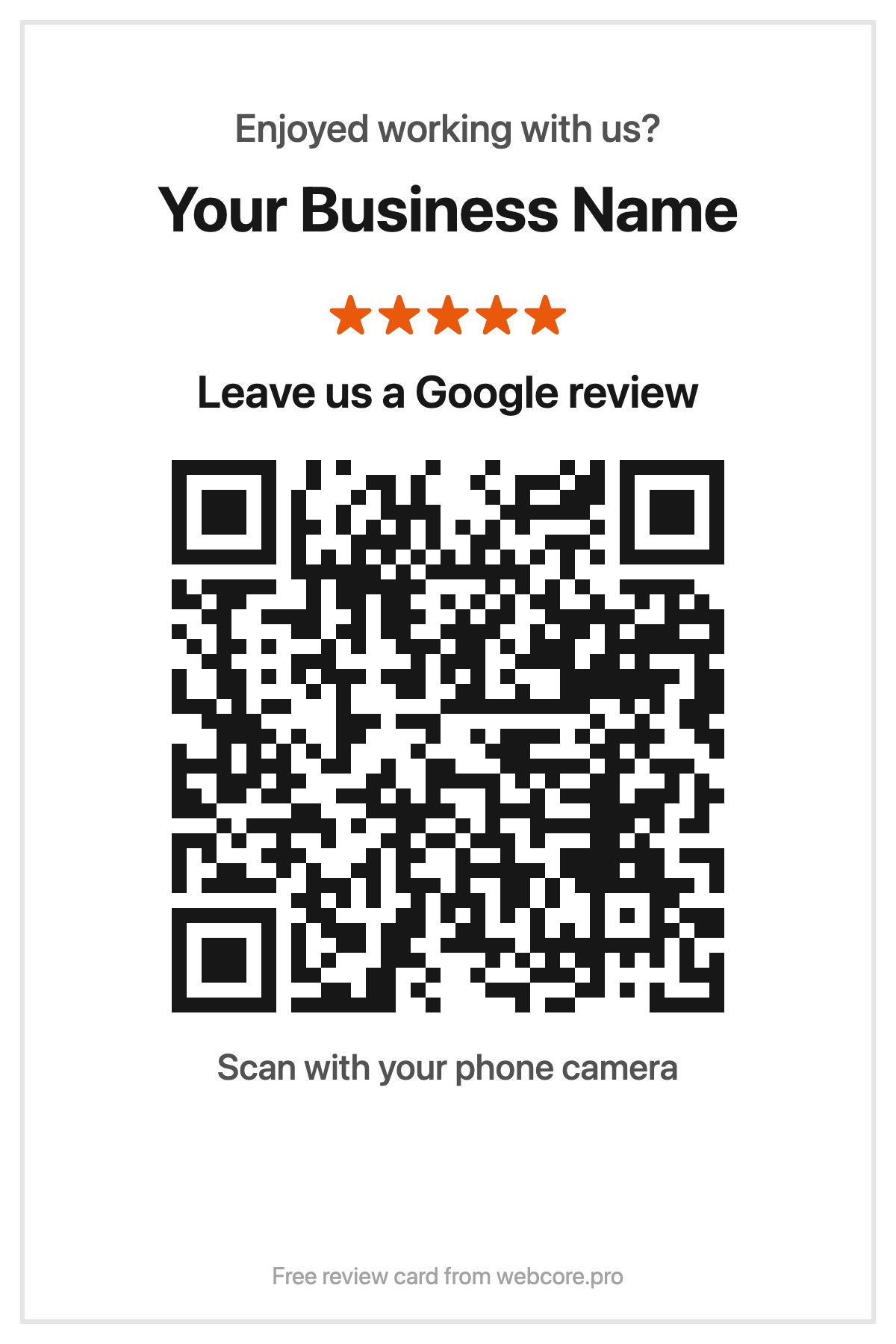
Before you print a stack, scan the card with your own phone and make sure it opens your review box, not just your profile.
When to ask, and what to say
The best moment is the minute after a job goes well. The customer is still happy, the work is fresh, and their phone is in their hand. A reminder a week later lands in a pile of other messages.
Picture a furnace replaced on a cold Tuesday. The house is warming up, the customer is thanking your technician at the door, and the technician says: "If you've got a second, a quick review really helps us. I'll text you the link." The text arrives before the truck leaves the driveway. That's the whole system.
Three ways to ask:
- By text, right after the job. The link is one tap away, which is why text works best. The card maker writes the message for you.
- By email, for customers who prefer it. Keep it short, thank them by name, put the link on its own line.
- In person, with the card. Hand it over with the invoice, or leave it on the counter where people pay or wait.
Make it personal. "Thanks for choosing us" is fine. "Thanks for having us out to fix the furnace on Tuesday" gets read.
Where to put your QR code
- On the invoice or receipt, next to the total.
- On the counter, or the table in your waiting room.
- On the truck, near your phone number.
- On business cards and the leave-behind after a service call.
- In your email signature, as the link rather than the QR code.
What Google allows
You can ask every customer for a review, and you should. What Google's content policy doesn't allow is offering incentives, such as payment, discounts, or free goods or services, in exchange for posting a review.
Ask everyone, not only the customers you expect to be happy. Reviews from real jobs, good and less good, read as real to the next customer, and a calm, helpful reply to a critical review often says more about your business than five more stars.
Reviews bring the call. Your website gets it.
Reviews do more than reassure people. Google's own guide to local ranking says prominence, one of the things it ranks local results on, is based in part on how many reviews you have.
But a review only gets you to the next step. When a customer taps through from your reviews to your website, the site has to load fast enough to keep them. In the October 2026 edition of the WebCore Web Index, we measured 295 Ontario trade and clinic websites in 15 towns. The median site took 6.8 seconds to show its headline on a phone, and 92% took more than 3 seconds. Your reviews can win the click and your website can still lose the call.
FAQ
How do I get my Google review link?
Search your business on Google while you're signed in as the owner, click Ask for reviews and copy the link. You can also paste that link into the card maker in this article to get a QR code, a printable card and messages to send.
Is there a free Google review link generator?
Yes. Google itself gives every Business Profile a review link under Ask for reviews, for free. The card maker in this article is free too, with no sign-up: paste the link and it makes your QR code, a printable card and two messages to send.
Does Google give you a QR code for reviews?
Yes. Google shows a QR code next to your review link under Ask for reviews. The card maker in this article turns your link into a printable card with your business name, so customers know what they're scanning.
Can I get a review link if I'm not the owner?
Yes. Open the business on Google Search, click Write a review and copy the address from your browser bar. It opens the review box directly, and the card maker accepts it.
Why can't I see Ask for reviews?
You need to be signed in to the Google account that manages the Business Profile. If you're signed in and still don't see it, ask whoever set up the profile to add you as a manager.
Can I offer a discount for a Google review?
No. Google's content policy doesn't allow offering incentives such as payment, discounts, or free goods or services in exchange for posting a review.
How often should I ask for reviews?
After every job that goes well. A steady stream of recent reviews shows the next customer you're still doing good work, and it turns asking into a habit instead of a campaign.
Does my Google review link ever change?
Review links rarely change, but Google can update a listing. Test your link and your printed card once a year, and any time you change your business name or address.